


Maxcourse – Quick User Guide
Create an Account
You must create an account to book onto courses.
- First, go to our Maxcourse site, Peninsula Foundation NHSE - South West - Home.
- ****Please ensure you create your account on the correct Maxcourse account several schools use Maxcourse to facilitate their teaching.****
- Go to ‘New user? Start here’ and click the link.
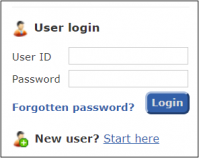
User login/new user box
- Complete the form using your work email; this will enable us to validate your account. Please ensure your name is full and grammatically correct (i.e. capital letters and spacing), as this will automatically be used for your certificate of attendance.
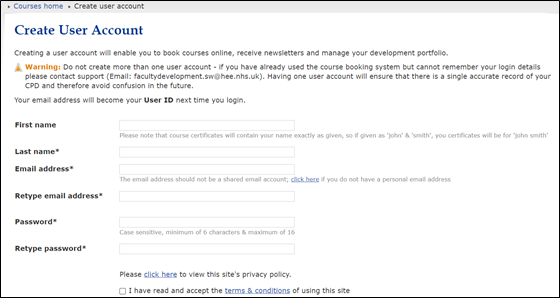
Maxcourse registration form
IMPORTANT POINT to note: you will encounter a Communications page. Due to GDPR compliance, you will not be opted in to receive any form of newsletters or general emails, you have to select the check boxes to opt in yourself. However, if you decide not to receive any communication then you are at risk of missing out on useful information such as course confirmations/cancellations.
Please tick the “Course Attendance” at the top and all three emails at the bottom.

Adding Extra Information
Once your user account has been made, you will need to add some additional information which is required to book onto our courses.
- Profession [Foundation Year 2]
- Date of birth
- Trust
- Dietary requirement
- A contact telephone number
This information can be added via the Account Details section on your profile.
Two-Step Authentication setup is optional but encouraged.
If a user chooses to enable Two-Step Authentication, they will also be required to add a verifiable email address to support secure recovery.
For any assistance please contact the foundation school.
Access to Courses
Our courses are designed for a variety of doctors. To ensure that doctors access the correct training for them, we add target audiences. To enable you to book onto our courses, you will need to add your profession to your account.
- Under ‘Account Details’, then ‘Professions’, you can add your profession (Please note that you can add more than one profession should this apply).

Account Details – Professions
- Once this has been completed, it will go to our team for approval. You will hear from us once we have verified your account; you can then start using the system to book onto courses!
Book Courses
If you have booked onto a course with us before Maxcourse implementation, we will be in touch with you to ensure your booking is moved across.
If you have expressed an interest in a course but have not yet been able to book, you will be invited to book your place before the courses are advertised more widely.
- To find a course or browse the catalogue, use the taskbar on the right-hand side of the screen to use the Course list, Course Calendar, or search. When you search for a course, use the drop-down menu form the ‘Course list’ screen to tailor the courses for you.
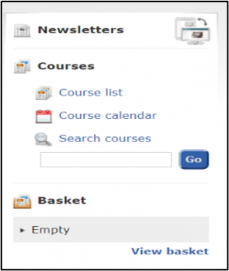
Find a course
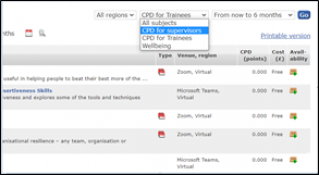
Drop Down Menu
- Click the name of a course to find out more. If you’d like to book on and places are still available, click ‘Add to basket’. If the course is full, you can apply for the waiting list.
- You can fill your basket with as many or as few courses as you like. However, your place is not confirmed until you check out. Checking-out will book your place on the course(s) or secure your place on the waiting list.
- Once your booking is confirmed, the course will be displayed in ‘My courses’ on your account. Use this area to check, change or cancel your booking. You can click into the course from here to access any pre-reading and the joining link, if the course is on Microsoft Teams or Zoom.
Cancel a Course
Should you need to cancel your course booking for any reason, you can do so up to 1 day before the course starts (Although as much notice as possible is appreciated).
- Once logged in, you can cancel your booking by going to ‘My courses’ and selecting the course you wish to cancel.
- This will open the course details and under the title, you will find ‘View booking’. Once you select this you will see a link named ‘Cancel booking’. Click on this link and you’ll be asked to confirm the cancellation. Your place will now be offered to somebody on the waiting list.
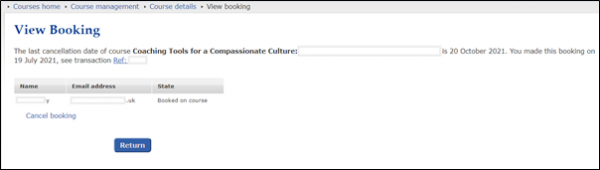
Cancel booking
After your Course
If you attended, you will be invited to fill in a brief evaluation form. Once you submit this, Maxcourse will generate a certificate for you to download. If the course carries CPD points, this will appear on the certificate.
There is help available on the Maxcourse system – click the Help icon on any page for advice.
